1.5.1 - 2026-11-01 — Language list and small fixes
Fixed
- The language list in the profile menu (your name in the sidebar › Language) was squeezed to a narrow strip; it now
  opens beside the menu, as wide as the longest language name, in the sidebar, the icon rail and the top navigation
- Icon rail: the profile menu was cut off by the narrow rail; it now opens in full
- Notifications: the "Mark all as read" bar and the "View all notifications" button stay readable while the list
  scrolls (the notifications slid over them)
- All notifications page: one card with a line between notifications instead of a card around each one
- To-do page: the two lists are cards with quiet headings instead of solid yellow and blue bars
- Newsfeed: the close button sits inside the post card instead of on its corner
- Side menus of record pages (GDPR and the profile pages of many other modules): a tidy list with the current item
  highlighted; a panel inside a panel no longer draws a frame within a frame
- No more "curl_close is deprecated" notice on PHP 8.5 (license check and Theme From Your Website)
Updates
- Upload the new files and run Perfex's Upgrade Database for the module: no database change, every setting and
  theme is kept
1.5.0 - 2026-10-31 — Industry presets and client portal 2.0
Industry presets
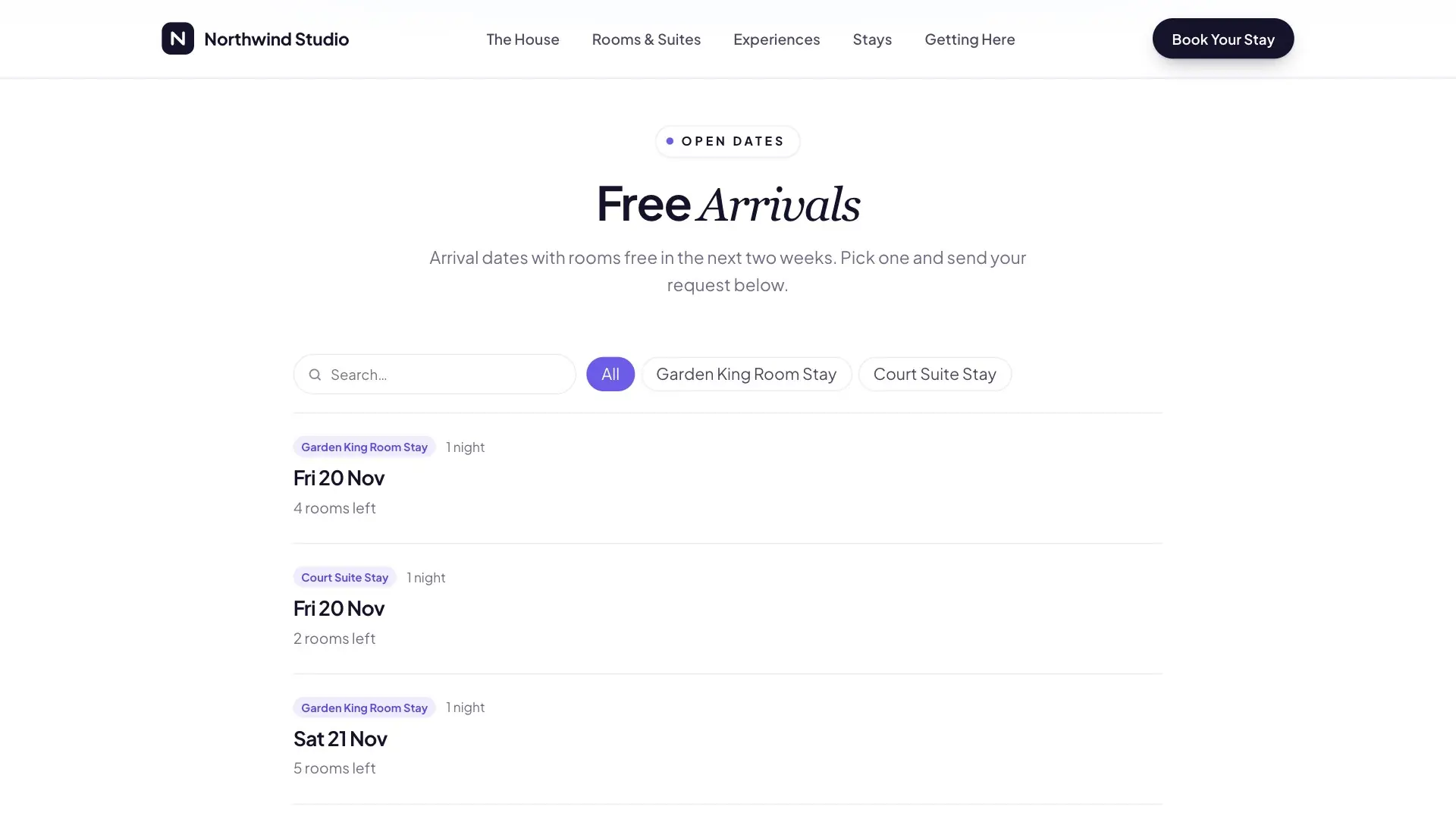
- Eight new style presets made for agencies, clinics, law firms, construction, SaaS, retail, education and
  hospitality, each with its own colours, fonts, corners, density and sidebar, in light and dark (twelve presets in all)
- Themes › Style Presets: search and industry filters, live previews in light or dark, and a panel per preset with its
  palette, fonts and shape
- Apply options: start in light, dark or auto; Keep My Brand Colour (the preset recoloured from your Brand Kit
  colour); Keep My Layout & Menu (on by default, so a preset never moves your menu); Preview on My Account before
  Apply for Everyone, with Undo
- Eight new font families bundled with the module (SIL Open Font License; no calls to font services, a font is only
  downloaded when a theme uses it) and a new Spacious density
Theme from your website
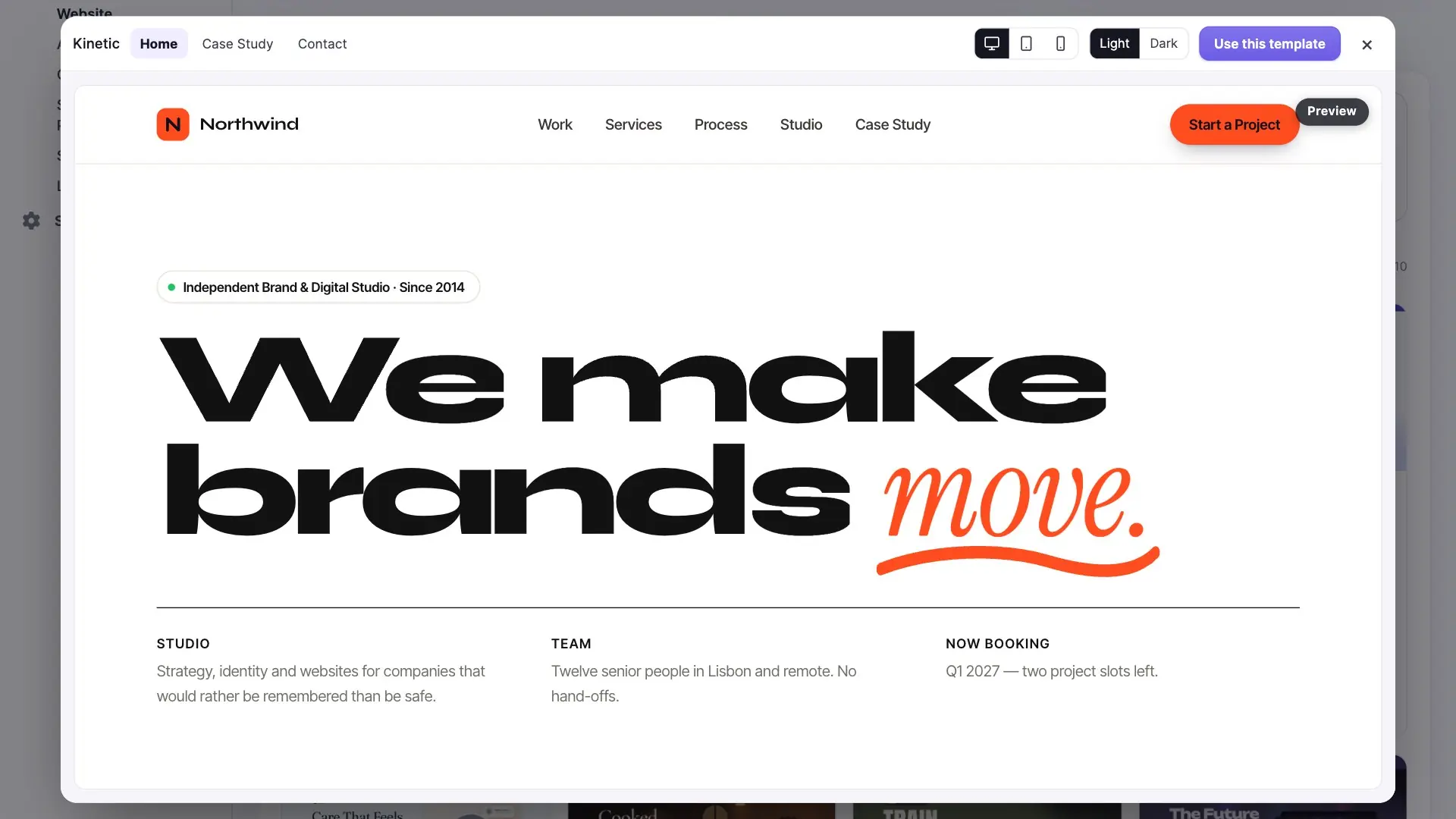
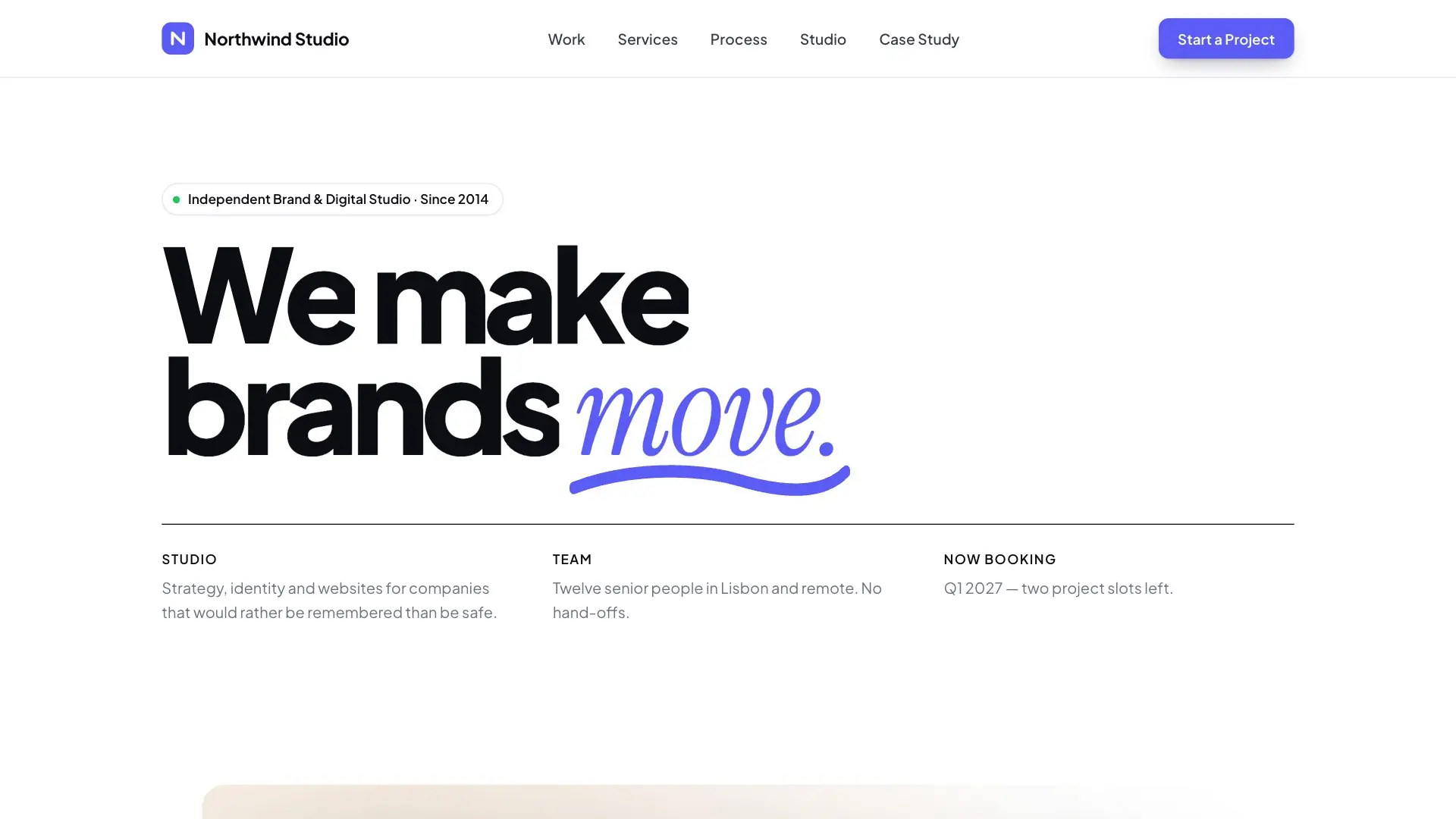
- Paste your website address: Design Studio reads your logo (header logo, app icon, social image), favicon, colours
  and the heading and body fonts separately, then suggests the best matching presets
- Clear messages when a site cannot be read (private address, timeout, sign-in only, nothing to read, too large);
  public pages only, at most 10 readings per person every 10 minutes
- Choose whether the result also updates your Brand Kit
Client portal 2.0
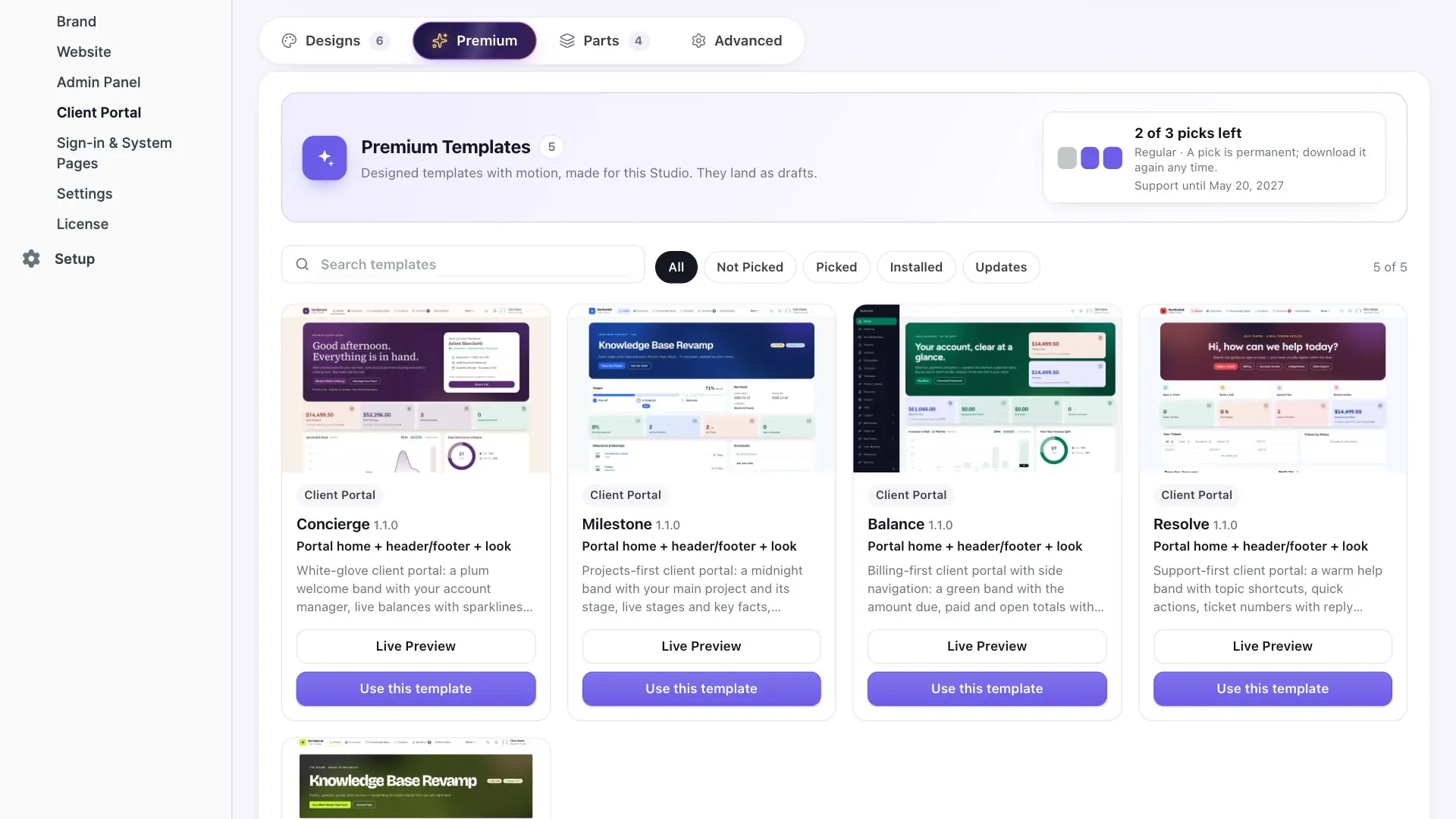
- New portal pages: home with what the client owes and a Pay button up front, Open Invoices, Amount Due, Active
  Projects and Open Tickets, waiting items, latest files and tickets
- Invoices, one Estimates & Proposals list (Waiting, All, Accepted, Declined) with Accept & Sign, projects with
  milestones and tasks, invoice, estimate and proposal pages that read well on a phone
- Phone navigation as a strip you can scroll, no hidden menu; every page keeps Perfex's permissions and the places
  where other modules add their content
Client portal branding per customer group
- White-label the portal per customer group: logo, colours, preset, font, portal name and subtitle, with its own
  sign-in link (/clients/login?brand=…) that styles the login, registration and password pages
- A contact always sees the brand of their own customer's group (you choose which group wins); other contacts never
  see it
- Optional per brand: the group's logo on invoice, estimate and proposal PDFs and at the top of client emails
- Preview as Contact (read-only), pause a brand, copy its login link; a Perfex SaaS Studio plan feature
Export / import
- Move a whole look between installations in one file: colours, menu, dashboards, login pages, portal brands and,
  if you like, the logos
- Import checks the file first and shows what is ready and what will be skipped; it always arrives as a draft, new
  group brands start paused. Files from earlier versions still import
Other
- PDFs: invoice and estimate statuses use the same meaning colours as the badges on screen (Overdue now red)
- License page: when something on the way (a firewall or proxy page) answers instead of sellmycode.net, the page now
  shows "Details for support" (status, content type and the start of that page, your purchase code hidden) to copy
  into your support request; such an answer still changes nothing
Upgrade
- Upload the new files and run Perfex's Upgrade Database for the module (or open any page): nothing to set, every
  theme, page, view and Brand Kit version is kept; group branding is ready when you want it
1.4.2 - 2026-10-31 — Status colours keep their meaning
- Status badges no longer take your brand colour: Paid, Accepted and Finished are always green; Unpaid, Overdue,
  Declined and Expired always red; Partially Paid, Sent, Open and In Progress always amber; Draft, Cancelled and Not
  Started always grey. Before, a red brand on the Corporate preset could show "Paid" in red
- The same colours in every preset, in light and dark mode, in the staff area and in the client portal (invoices,
  estimates, proposals, projects, tasks and the portal home), each readable at 4.5 : 1 or better
- Ticket statuses keep the colours you set under Setup › Support › Ticket Statuses
- Theme editor: the contrast check shows a "Status badges" row (fixed colours, nothing to set)
- Your brand colour still styles links, buttons, the menu and "info" badges
Upgrade
- Upload the new files and run Perfex's Upgrade Database for the module (or open any page): nothing to set, every
  theme, page, view and Brand Kit version is kept
1.4.1 - 2026-10-31 — Activation on a new installation
- Fix: activating the module on a new installation no longer fails with "Unknown document type auth" before a
  license is entered. The module installs completely and waits on its License page until you enter your purchase code
- Fix: an installation that stopped with that error now completes when you upload 1.4.1 and activate the module or
  run Perfex's Upgrade Database for it; nothing has to be removed first
- Fix: Upgrade Database with the module turned off now also completes when a document has to be created
Upgrade
- Upload the new files and run Perfex's Upgrade Database for the module (or open any page): no manual step, every
  saved view, setting, theme, page and Brand Kit version is kept
1.4.0 - 2026-10-30 — Advanced data tables on Perfex's lists
Your own table, on every main list
- Leads, customers, invoices, estimates, projects, tasks, tickets, proposals, expenses, contracts, payments and staff
- Column picker: show or hide columns and drag them into the order you like, with Reset Columns to go back to
  Perfex's columns. Each person's choice is kept per list
- Density: comfortable or compact rows, per person and list
- Rows per page: each list opens with the number of rows you chose last
- On lists with saved views the Columns panel of the views bar holds these choices: "All" shows your own columns and a
  saved view keeps its own column set
Easier to read wide tables
- The header row stays in view while you scroll down the page
- On wide tables the first column stays in view while the table scrolls sideways
- Wide tables scroll inside their card, with a shadow on the side that has more, so the page never scrolls sideways,
  also on phones
For administrators
- Design Studio › Safety & settings › Data Tables: turn the whole feature or each part on or off, pick the default
  density and choose the lists it applies to
- Perfex SaaS Studio: new plan feature "Advanced Data Tables", off until you turn it on for a plan
Good to know
- Export (Excel, CSV, PDF, Print) works as in Perfex: it includes every column of the list in Perfex's order, also
  columns someone hid, because Perfex's export does not follow the columns shown
- Tables other modules add to these pages are left as they are
- New texts in all 9 languages
Upgrade
- Upload the new files and run Perfex's Upgrade Database for the module (or open any page): no manual step, every
  saved view, setting, theme, page and Brand Kit version is kept
1.3.2 - 2026-10-30 — Upgrade Database with the module turned off
- Fix: Upgrade Database now works even when the module is turned off (it stopped with an error before); the module
  stays off until you turn it on again
Upgrade
- Upload the new files and run Perfex's Upgrade Database for the module (or open any page): no manual step, every
  saved view, setting, theme, page and Brand Kit version is kept
1.3.1 - 2026-10-25 — Saved views open clean
- Fix: a saved view with a sort no longer shows "Changed" as soon as it opens. A view's sort and columns are now
  compared the way the list applies them, so a sort or column the list does not have (a removed custom field, a column
  another module takes away) no longer reads as a change
- Fix: with Perfex's "Save last order for tables" on, opening a saved view no longer replaces your own last sort of
  the list, and a view saved with the sort you were already on keeps that sort
Upgrade
- Upload the new files and run Perfex's Upgrade Database for the module (or open any page): no manual step, every
  saved view, setting, theme, page and Brand Kit version is kept
1.3.0 - 2026-10-25 — Saved views and advanced filters on Perfex's lists
Saved views
- Tasks, leads, projects, invoices, estimates, tickets and customers get a bar above the list: All, your pinned views
  as tabs, every view in a searchable menu, Filter, Columns and Save
- A view keeps its filters, the columns shown and their order, the sort and the rows per page, with a name and an icon
- Private, shared with everyone, or shared with chosen roles and departments; each person pins views as tabs and picks
  a default view per list
- Ctrl/Cmd + K: type "view" or a view's name, or use Go to View…, to open a list on that view
- Saved Views page in Design Studio for administrators: every shared view with owner, sharing and filters; rename,
  re-share or delete. Private views stay with their owners
Advanced filters
- Conditions on the list's fields and its custom fields: is / is not, contains, starts with, before / after / on /
  between, empty, number ranges, "has any / all / none of" for assignees, followers, members, tags and groups
- Relative dates: today, this week, next 7 days, last 30 days, this month, overdue and more, worked out on the day the
  list is opened; "Me" in staff fields means whoever opens the view
- AND / OR groups up to three levels deep and one-tap quick filters (Assigned to Me, Overdue, Due This Week …)
- Filters run on the server inside Perfex's own list query, together with Perfex's own filter menu; they only narrow
  what each person may already see, never more
Permissions and plans
- New permissions Design Studio: Saved Views › Share views with others and Manage shared views (administrators have
  both). Every staff member may keep private views
- Perfex SaaS Studio: new public plan feature Saved Views and Filters (off by default: the SaaS admin turns it on for
  the plans that should have it, usually the higher ones; it does not depend on the design level)
- New texts in all 9 languages; Safety › Staff options has a switch for saved views (on by default)
Upgrade
- Upload the new files and run Perfex's Upgrade Database for the module (or open any page): three new tables are added,
  every setting, theme, page and Brand Kit version is kept
1.2.2 - 2026-10-25 — Plan features shown publicly in Perfex SaaS Studio
- The design level and the area switches (Brand Kit, Themes, Layout & Menu, Login Pages, Website, Custom CSS) now
  mark themselves as public plan features, so Perfex SaaS Studio shows them on its pricing page, in Compare Plans and in
  the tenant preview on its own, without a built-in list for Design Studio
Upgrade
- Upload the new files and run Perfex's Upgrade Database for the module (or open any page): no manual step, every
  setting, theme, page and Brand Kit version is kept
Per-plan design policy (with Perfex SaaS Studio 1.0.1 or later)
- Each plan gets a design level: Locked (the platform's look, read-only), Brand (the platform's look with the
  workspace's own Brand Kit: logo, colours, fonts) or Full (the workspace designs its own look)
- Area switches per plan on top of the level: Brand Kit, Themes, Layout & Menu, Login Pages, Website and Custom CSS
  (Custom CSS stays off unless a plan allows it). Set them in SaaS Studio → Plans → Module Features
- Inside a workspace, a closed area shows a clear card with what the plan includes and a link to upgrade; the menu
  entry stays, and staff can always switch light/dark for themselves
- Downgrades keep the previous level for a grace period (30 days by default, set in SaaS Studio); after it the lower
  level applies. Nothing is deleted: themes, Brand Kit, pages and CSS stay stored and come back after an upgrade
Shared module folder under SaaS Studio
- Design Studio writes nothing inside its module folder in a workspace, so SaaS Studio links every workspace to the
  main install's copy (one folder to update) instead of keeping a private copy per workspace
Fixes
- Website pages of a workspace whose plan no longer includes the website builder (after the grace period) are no
  longer served: the address falls back to Perfex's own home and login page, old page links lead there and the
  sitemap is empty. The pages stay stored and are served again when the plan allows the website builder
- A staff member's personal theme preview (and editor previews and thumbnails) no longer include Custom CSS when the
  plan's Custom CSS switch is off, the same rule as the applied theme
Upgrade
- Upload the new files and run Perfex's Upgrade Database for the module (or open any page): no manual step, every
  setting, theme, page and Brand Kit version is kept

1.2.0 - 2026-10-23 — Brand Kit, Theme From Logo or Website, command palette, Perfex SaaS Studio
Brand Kit (new Studio tab)
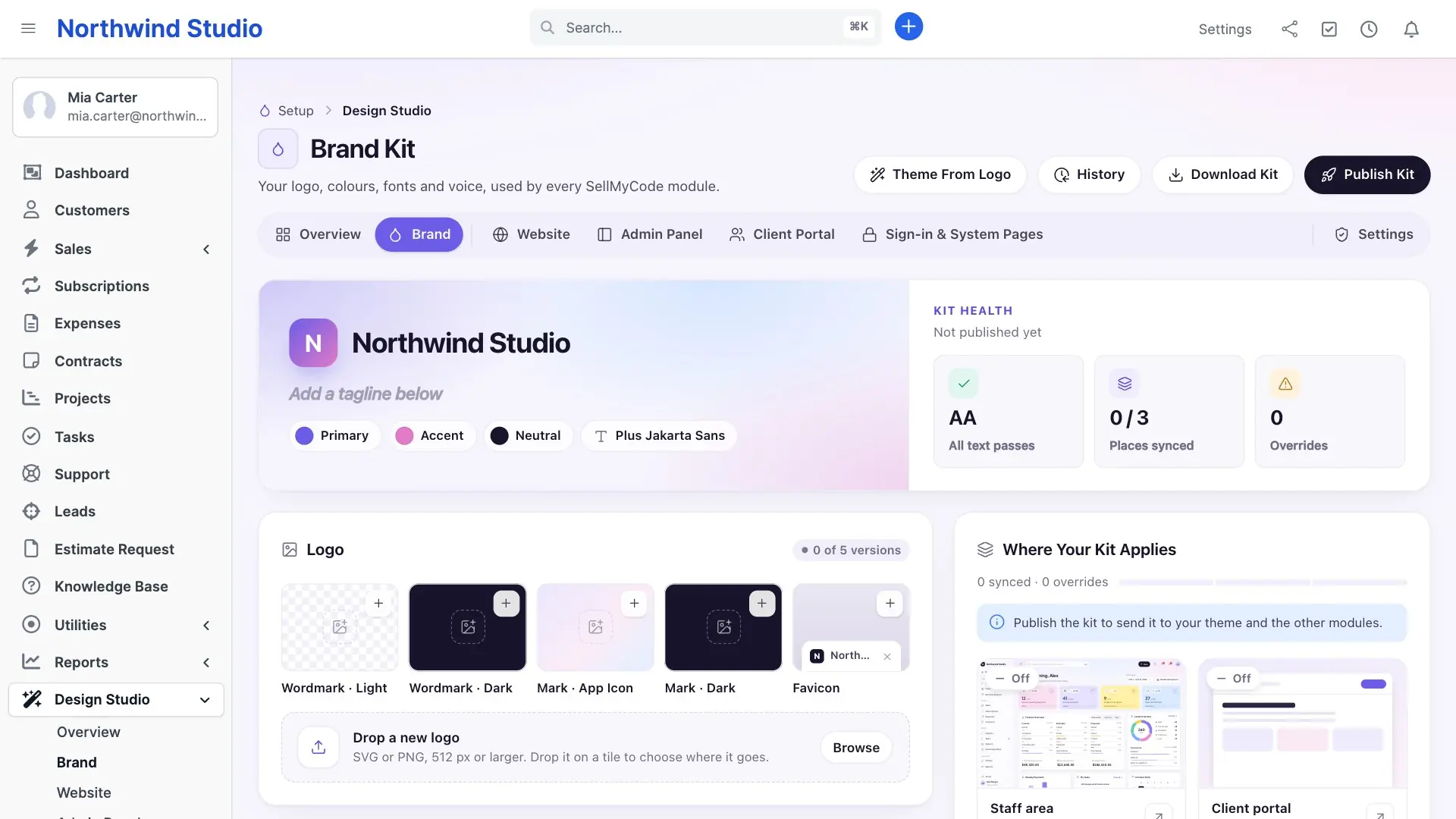
- One place for your logo (wordmark light/dark, app icon, dark mark, favicon), colours (primary, accent, neutral with a
  generated scale and contrast badges), fonts (bundled, system or your own WOFF2/TTF files, self-hosted, no Google
  calls) and voice & email (brand name, tagline, sender name, reply-to, tone)
- Publish Kit sends it into the theme that applies as a new theme revision, so the staff area, login pages, client
  portal and new website pages follow it; Undo puts the theme back. "Where your kit applies" shows every place that
  follows the kit or overrides it, with Sync All and Reset to Kit
- History: every published version of the kit with its date, author and what changed (logo, colours, fonts, voice...);
  Restore publishes an older version again and syncs it into your theme exactly like Publish
- Download Kit as JSON; other SellMyCode modules read the published kit (pds_brand_kit(), pds_brand_kit_updated)
Theme From Logo or Website
- Drop a logo (PNG, JPEG, WebP, GIF or SVG, cleaned) or enter a public website address: the colours and fonts are read
  in your browser or from the site's own page (private and local addresses are refused, at most 6 readings a minute)
- Three suggested themes with light and dark previews, contrast fixes and a before/after view; apply for everyone,
  try it only on your own account, or open it as a draft in the theme editor. Applying for everyone also publishes the
  Brand Kit; Undo restores the previous theme and the kit's versions stay in Brand Kit → History
- Optional theme name and tagline from AI Staff when it is active
Command palette (Ctrl/Cmd + K)
- On every staff page: search customers, contacts, leads, invoices, estimates, proposals, projects, tasks, tickets and
  staff (each only as far as Perfex lets that staff member see them), settings pages and quick actions, light/dark,
  Design Studio and Ask AI Staff; recent items per staff member
- On by default; can be switched off in Design Studio → Safety
Perfex SaaS Studio support
- Tenants are recognised; the main install shares its look with tenants through Perfex SaaS Studio (no file in the
  module folder is written, so the folder can be shared). When the SaaS owner has published nothing, tenants use the
  main look and cannot edit it; a plan can allow tenants to design their own look (design_studio.tenant_editing)
- Per-tenant CSS cache and media folders; the client portal theme is built by the main install only when tenants
  share its views
Upgrade
- Upgrading from 1.1.x needs no manual step: the new options are added (existing settings kept), the Brand Kit is
  created the first time its page opens, and a Perfex SaaS Studio main install shares its policy right after the
  upgrade
- New texts in all 9 languages
License checks name the product

- Every license call (activate, check, pause) now sends Perfex Design Studio's sellmycode.net item id, as the license server
  requires
- A purchase code bought for another product, or an unknown one, only shows "This purchase code is not valid for
  Perfex Design Studio." and is never activated
- An activation made by an older version with another product's purchase code is paused automatically and removed
  from this install; enter your Perfex Design Studio purchase code to switch the module back on


 0 Viewing now
Live buyer activity

Pick 3 of SamSan’s items to unlock 10% off your total.
Everything you pick is added to your cart when you tap the button below.

This item was featured on SellMyCode
Last update:
20 Nov, 2026
Published:
09 Oct, 2026
Version:
Category:
Framework:
Tags:







 Google
 Github
 From Unknown Location
 Elite Seller
 Trend Master