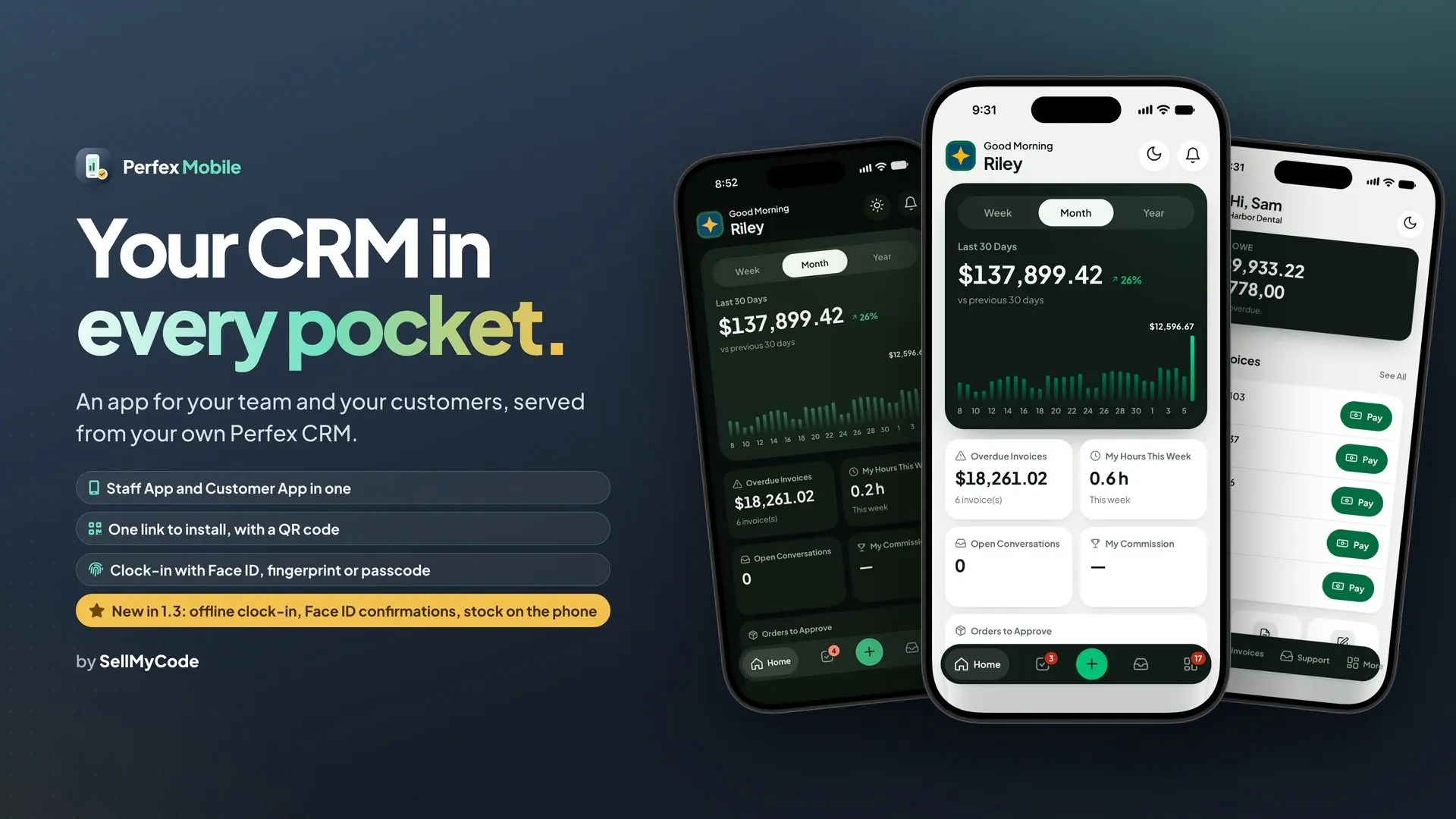
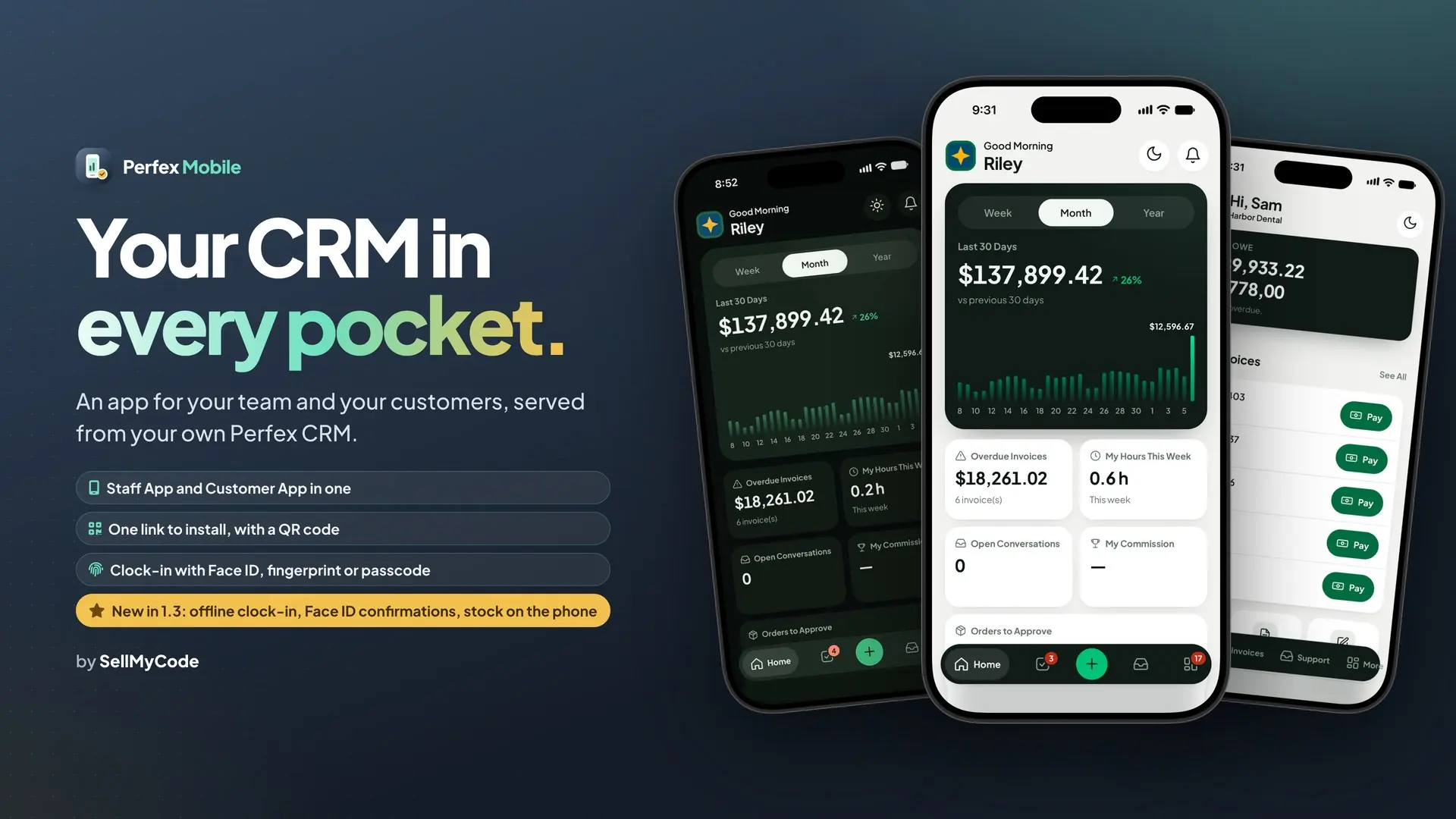
1.8.0 - 2026-11-25 — Clock in with Face ID in the native app, correct revenue trend, faster Home
New
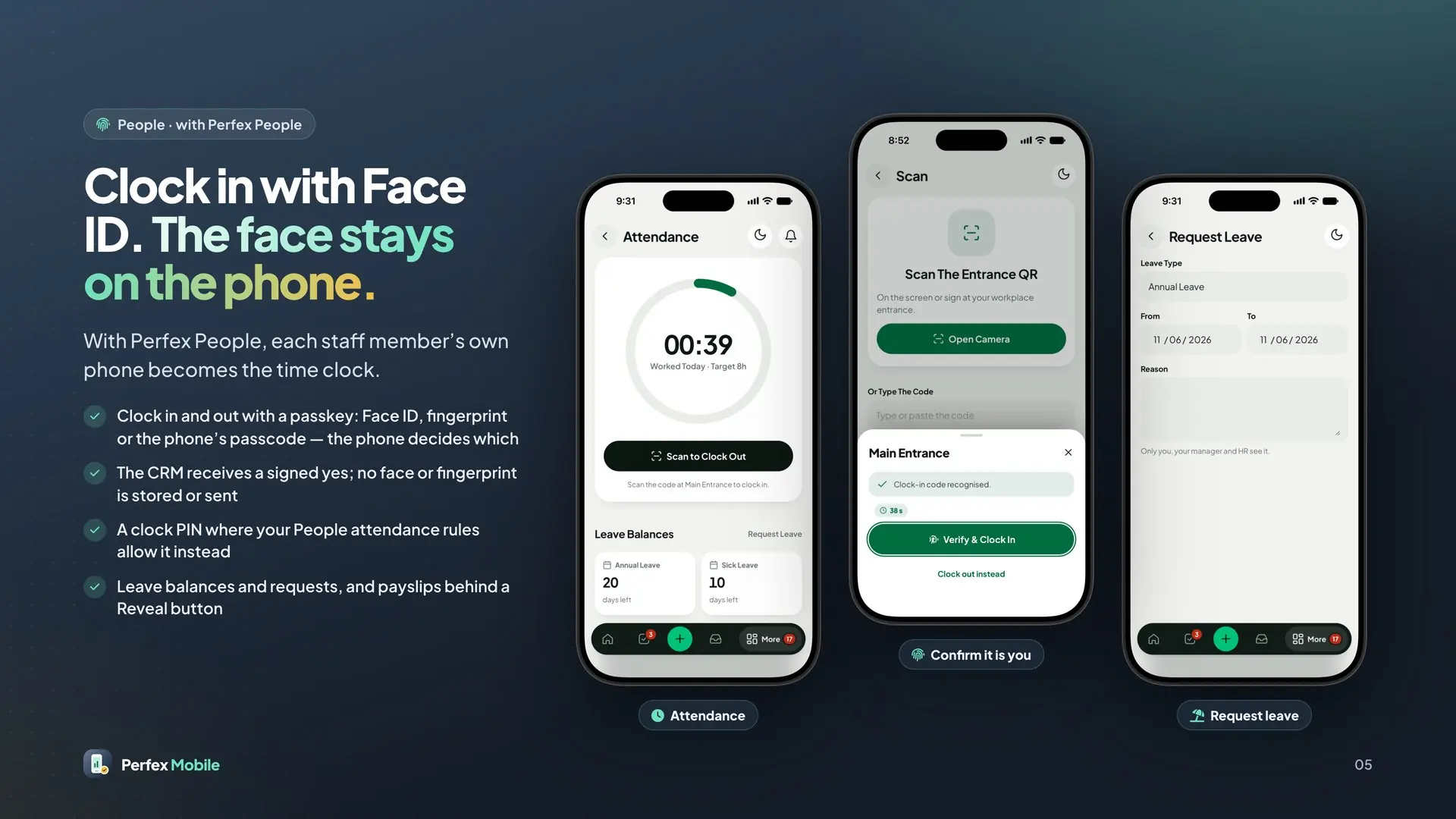
- Attendance Biometrics (native app 1.2 or later with People 1.6 or later): staff confirm a clock-in or clock-out with Face ID or
  fingerprint inside the native app. The phone keeps its own key in the Secure Enclave / hardware keystore and signs a one-time
  challenge for that person, phone and punch; the CRM stores only the public key. A new phone waits for an approver, like passkeys.
  Off by default (Setup › Mobile › Push › Native App › Attendance Biometrics); the switch says whether your People version supports
  it. Staff need People attendance access (at least View Own), and each phone is approved by an admin in Setup › Mobile App ›
  Settings › Face ID Approvals (approvers on older app versions can approve these phones too). When a phone cannot use it, the
  app says why: no People attendance access, switched off, a demo CRM, a phone that needs setting up again, and so on. Every
  refused attempt is in the Mobile activity log with the phone's key and the clock-in or clock-out it was for. With People 1.5
  clock-in keeps PIN and Scan exactly as before.
Improved
- Home and Sales open faster on CRMs with many invoices: the amount still owed is added up in a few queries instead of one per invoice.
- The app loads its chat and calls screens once, even when two parts of the app ask for them at the same time.
- Field Service offline list: one "offline" message instead of two, and the search box no longer shows "Search" twice.
- Documentation: Attendance Biometrics setup (including Android apps you publish yourself), and a clear note that AI call handoffs
  ring only phones with the native app.
Fixed
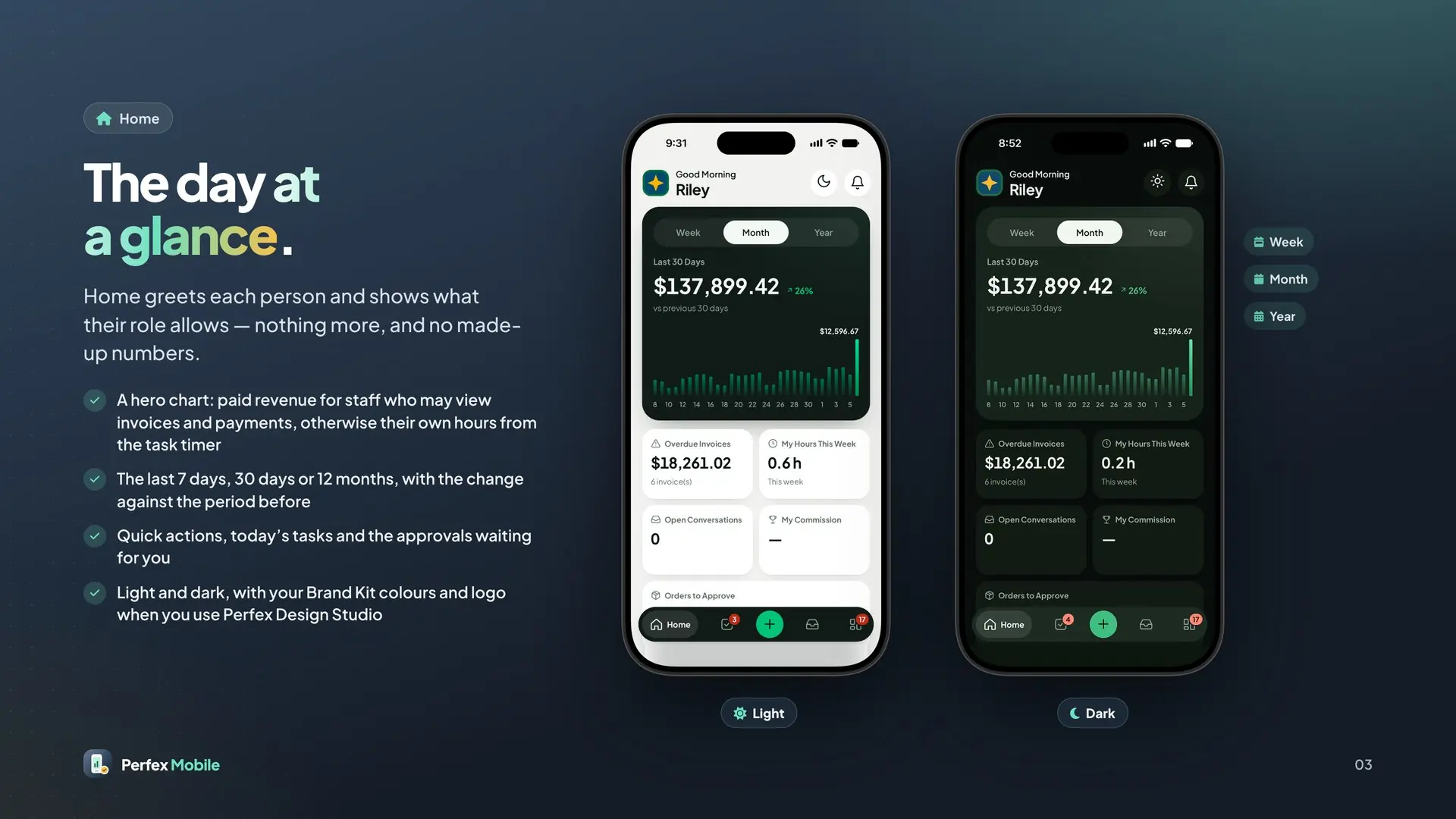
- The revenue card on Home compares this month so far with the same days of last month (it compared with only the 1st of last
  month, so the percentage was too high or missing).
- After signing in (or sending a form) with the keyboard's Go / Return key on iPhone, the tab bar no longer stays hidden until
  the app is restarted.
- Drop-down lists in Setup › Mobile App show their arrow in the dark theme too, and on the left in right-to-left languages.
1.7.0 - 2026-11-21 — Field Service offline, Google Meet, AI call handoff, faster notifications
New
- Field Service work orders work without signal (Perfex Field Service 1.1 or later): a technician's assigned orders stay on the
  phone; travel, arrive, start, pause, complete, checklist, notes, materials, photos and the customer's acceptance are saved in
  order and sent when the signal is back (Field Service › Sync Queue). Photos go before the completion that lists them, the
  signature after it; the office wins on assignment, schedule and status, and the app says what the office changed.
- Google Meet meetings from TeamPulse 1.6 or later open in the Meet app or the browser with Join; the list shows "Google Meet" under the meeting.
- Ready for AI call handoff (AI Staff phone agent with Inbox 2.5, native app 1.1.2 or later): when the AI agent hands a caller to a
  person, the on-duty staff's phones ring with the caller's name and the reason; the AI's summary shows only after someone answers.
Improved
- Notifications are sent on every cron run instead of waiting for Perfex's own 5-minute cron step (run the cron every minute).
- While the "Offline" bar shows, the screen's content starts below it instead of under it.
Fixed
- A page error that could appear when the waiting list emptied while the phone was online.
1.6.0 - 2026-11-20 — Works with the native app, reply from notifications, share files into the CRM
New
- Ready for Perfex Mobile Native 1.1.1 (sold separately): reply to a team chat message straight from the notification on
  iPhone and Android. Each notification carries a single-use link that works once, for 24 hours, on that phone only; the
  CRM checks the person's rights again when the reply arrives. Administrators can switch this off (Setup › Mobile › Push ›
  Notification Actions).
- Share files into the CRM: photos and documents shared to the native app attach to a task, ticket or lead you opened
  recently (one file per upload, up to 10 MB; tasks and leads take Perfex's allowed file extensions, tickets the ticket
  attachment types).
- Notifications group per CRM and per kind on the lock screen; with several CRMs in one native app the company name shows
  under the title on iPhone.
- The native app can ask for Face ID / fingerprint before an approval or a payslip (when the person turns it on).
- A clear "Offline · N waiting to send" bar on every screen while the phone has no connection.
Improved
- Interface texts in Dutch, French, German, Italian, Portuguese (Brazil), Russian, Spanish and Turkish were reviewed line by
  line and corrected where the meaning was wrong (wrong word senses such as clock-in, due date, leave or posting a bill,
  untranslated fragments, dropped words, labels that had become nouns, translated product names); German now uses the
  formal form throughout.
- The "older data" banner says that the server could not be reached (it also shows when the server answers with an error).
Fixed
- Sending the same upload twice after a lost answer (same request key) is now recognised as a repeat instead of being refused;
  this also repairs ticket replies with attachments sent again from the app after a lost answer (since 1.5).
1.5.3 - 2026-11-20 — Faster start, instant screens, lighter traffic
Improved
- The app paints at once from what it last saw: Home, lists, details and chats show their last copy immediately and update
  in place when the server answers; nothing is shown as current while offline (the stale banner stays).
- Opening the app no longer waits for the server page: the installed shell starts from the phone and refreshes in the
  background. Only English is installed with the app; your language is kept the first time it is used.
- Less data: server answers are compressed (gzip) and unchanged screens are confirmed with a tiny reply instead of being
  sent again (ETag / 304). The tab-bar badge poll asks for the counts only.
- Faster server work: the task list reads a page in a few queries instead of several per task (about 80 → 8 for a
  page), the lead list about half as many, the first load (bootstrap) about a tenth fewer; Home fetches only the five
  tasks it shows; approvals, task counts, the default currency and the language table are computed once per request.
- Smoother drawing: icons are parsed once; chat files load their chunks three at a time; the customer app's screens are
  loaded only for customers, the staff screens only for staff.
- A screen drawn from its last copy shows the error instead when the server now refuses it (a deleted or no longer
  permitted record), and the "showing older data" banner when the server cannot be reached.
Notes
- The phone's own copy is still the only cache (no shared HTTP cache); a 1.5.3 app on an older CRM keeps working.
1.5.2 - 2026-11-19 — Filter rows fit the phone
Fixed
- Filter rows (Inbox: Mine / Unassigned / All Open / Following; Chat: All / Unread / Mentions / Channels / Direct, and the
  others) now fit the phone width: the chips are a little tighter and wrap to a second line when needed, so the last filter
  is never cut off at the right edge. Wide screens are unchanged. The native app picks this up with its next shell update.
- Calls use the handset icon everywhere (More tile, chat header, call list, answer button) instead of the smartphone outline.
1.5.1 - 2026-11-19 — Server side for the native iOS / Android app
New
- Ready for the native app (Perfex Mobile Native, sold separately): your own iPhone and Android app can sign in to this CRM,
  receive notifications and ring for calls while the phone is locked or the app is closed.
- Settings › Push › Native App (administrators): enter your own Apple push key and Firebase service account; they are stored
  encrypted and never shown again. The page says what is missing and whether the call worker runs.
- Call worker for ringing closed apps: run `php index.php perfex_mobile/native_worker run` under your server's process
  supervisor (without it, cron runs it once a minute: notifications are fine, calls ring late).
- Notifications (tasks, chat, approvals …) reach the native app too, with the same settings as the browser app.
- A short handshake address (/perfex_mobile/handshake) lets the native app tell "not installed", "not licensed" and "update
  needed" apart before anyone signs in. It shows no licence key or company details.
Improved
- Documentation: a full step-by-step guide for calls and meetings — what they need (Inbox 2.4+, your own Jitsi server, the
  app opened from the CRM's address), microphone and camera permissions on iPhone and Android, limits, a test and troubleshooting.
- Documentation: native app setup — where to get each Apple / Firebase value, the call worker under systemd or Supervisor, a
  closed-app call test, troubleshooting (not ringing, wrong Bundle ID or environment, permissions), TURN/STUN behind NAT,
  certificate errors, one-way audio, and what is stored (privacy).
- A key or settings mistake (wrong Bundle ID, revoked key) never signs phones out of push: sending pauses, the settings page
  shows Apple's or Google's reason, and saving the settings resumes it.
- Apple push sign-in tokens are reused for 40 minutes, as Apple asks; the worker keeps its connection to Apple and Google open.
- The call worker keeps its memory flat, picks up changed settings within a minute and restarts itself about once an hour.
- The handshake is limited per address, and failed call tickets are limited too.
Notes
- The browser app (PWA) works as in 1.5.0; nothing changes for people who do not use the native app.
- Calls stay the Inbox calls of 1.5.0; the native app rings with a one-call ticket for that call and that phone only.
1.5.0 - 2026-11-18 — Field visits without signal, calls, a refreshed look
New
- Field visits work without signal (Perfex Bookings 1.6): with signal the app keeps today's and tomorrow's visits on the phone
  in route order, with the office note, earlier notes, the visit checklist, parts used, work time and photos from the
  customer's earlier visit. Without signal you can still mark On the Way, Arrived, start and pause work, tick the checklist,
  write notes, record parts used, take photos and get the customer's signature (with their name), then complete the visit.
  Everything waits on the phone in the order you did it and is sent when you are back online.
- "Offline — N changes waiting" banner on the visit screens, and a Sync Queue screen with what waits and a Sync Now button.
  Photos wait for Wi-Fi (Sync Now sends them on mobile data); a photo that was half sent continues where it stopped.
- The office decides: a visit cancelled by the office keeps your work as a note, a visit moved to another technician leaves
  the phone, and a changed time is shown with your update saved. Each of these is shown once under "Changes From the Office".
- The visit report waits for the photos and signature still on the phone, so the customer gets the full report.
- Visits saved on a phone are removed when you sign out, and after 7 days without use.
- Search on the Sync Queue (with Changes, Photos and From the Office filters) and on the visit list.
- Search on long lists: approvals (with type filters), stock counts (Not Started / In Progress), incoming transfers,
  notifications (with an Unread filter) and payslips (by year).
- AI Conversations (with Perfex AI Staff): find and reopen your earlier conversations with the assistant.
- Field Service screens (with Perfex Field Service): work orders, history, evidence, reviews, reports and invoicing open in
  the app when the module is installed and active.
- Calls (with Perfex Inbox 2.4): call a colleague by voice or video from the app, from a chat or from the Create menu; answer
  incoming calls while the app is open. Calls run on your company's own video server.
- Meetings (with Perfex Team Pulse): your upcoming and past meetings, with search and pages, and Join from the phone.
- A refreshed look: warm neutral colours, round header buttons with the title centred, framed cards, clear main / secondary /
  delete buttons and a balanced Create menu. A CRM with a Brand Kit keeps its brand colours.
- AI answers show bold text, lists, tables and links properly.
- Long lists show a page that fits your screen with Previous / Next instead of Load More: notifications, chat, incoming
  transfers, AI conversations and every other list.
- New invoice: up to 3 customer suggestions searched across all customers, clear and pick again; saved items show their unit,
  price and a short description.
- Every search box has a clear button; list searches use the `search` parameter (`q` still works for older apps).
Fixed
- Tapping a notification opened the Home screen instead of what it was about. Notifications and push messages now open
  their screen: tasks, leads, customers, invoices, estimates, tickets, chats, approvals, People (attendance, leave and
  reviews) and Bookings visits. A notification the app has no screen for opens the Notifications list.
- Push messages for payments received, sign-in approvals, pickups ready and clock results opened Home too; they now open
  the invoice, Settings, the scanner and People.
- Tapping a notification in the list marks it as read.
- Field visit changes saved on the phone with Perfex Bookings 1.3–1.5 are now removed when you sign out.
- Pull to refresh: easier to start on iPhone and the screen no longer jumps on Android; the list refreshes in place without
  flashing; a pull on a scrolled list, inside a chat or with a sheet open no longer refreshes.
- Losing the signal while the app renewed its sign-in could sign the phone out (and remove changes waiting offline); the app
  now stays signed in.
- Drop-down lists no longer have their arrow against the edge.
- Many offline changes at once are sent in smaller parts, and a change made with an expired visit code is sent again with
  a fresh one instead of being dropped.
- An approval or assistant action sent again after a lost connection gets its first answer again, under the person's current
  rights; nothing runs twice.
- On iPhone, typing in a pop-up form (a note, a reason) no longer leaves the screen zoomed in.
Notes
- With Perfex Bookings 1.5 or older, visits work online as in 1.4.
- Calls need Perfex Inbox 2.4 with calls on and your own video server (Jitsi), and the app opened from your CRM's address.
- AI Conversations needs Perfex AI Staff 1.4; with an older AI Staff the screen says so and new questions still work.
1.4.1 - 2026-11-14 — Voice message details, transcript on your own clips, faster chat badge
Improved
- Voice messages (Perfex Inbox 2.3.1): when a recording is refused the app now says why and what to do: the server is
  busy (your recording is kept, tap Send again in a moment), the clip is longer than your company allows, the format is
  not accepted, the recording is damaged, or the upload did not arrive. Tapping Send again on the same recording
  reuses its upload key, so a resend after a lost answer is not stored twice.
- Get Transcript appears only on your own voice messages; a transcript of someone else's clip is refused by the server
  before any AI minutes are used.
- Chat tab badge: when nothing is unread, one quick check of Perfex Inbox 2.3.1 is enough (no page-by-page count).
- Direct messages show when the other person last opened Chat ("Last seen …") in the header and in Chat Details.
Security
- The licence page runs the module's request guard first (security wave 2); request guard updated to kit 3.2.
Fixed
- German texts added in 1.4.0 now use the formal form (Sie).
Notes
- Perfex Inbox 2.3.0 keeps working: without the 2.3.1 details the app behaves as in 1.4.0.
1.4.0 - 2026-11-13 — Team Chat, company announcements, Books on the phone
New
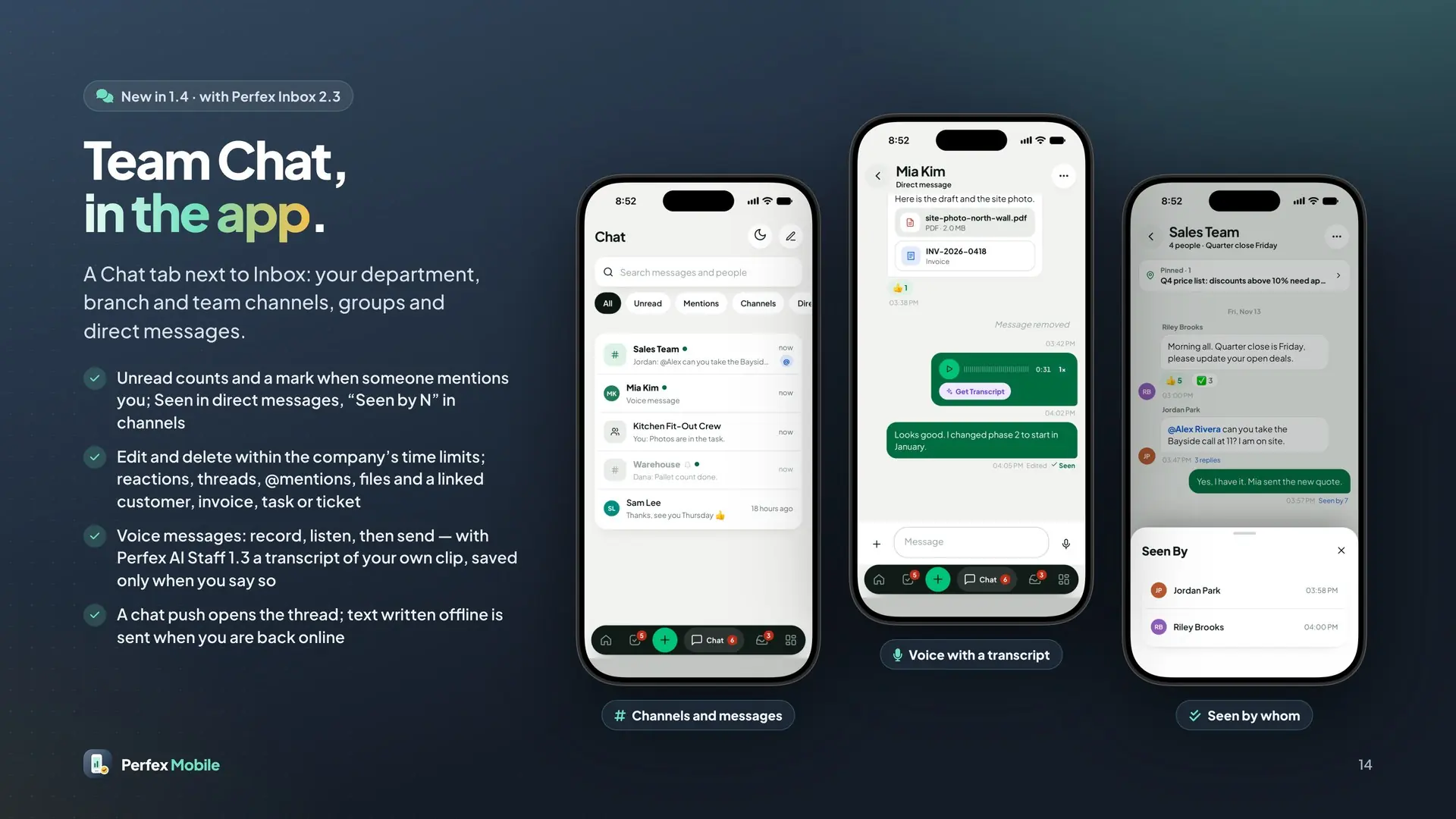
- Team Chat (Perfex Inbox 2.3): a Chat tab next to Inbox lists your department, branch and team channels, groups and
  direct messages, with unread counts and a mark when someone mentions you. Send text, photos and files (PDF, TXT, CSV,
  DOCX, XLSX, up to 5 per message), link a customer, invoice, task or ticket, and @mention people in the chat. Read
  receipts show "Seen" in direct messages and "Seen by N" in channels (with the names on tap); with read receipts off for
  the company the app shows "Delivered". Edit your message within the company's time limit, delete it for everyone within
  its limit, react, reply in a thread, see pinned messages and mute a chat. Channel admins can pin and remove messages.
  A Team Chat push opens the thread at that message. Text written offline is sent when you are back online.
- Voice messages in Team Chat: record up to the company's limit, listen, then send — nothing is sent automatically.
  Clips play with a waveform, scrubbing and 1×/1.5×/2× speed. With Perfex AI Staff 1.3 voice switched on for the Mobile app,
  "Get Transcript" on your own clip makes a draft only you see; you save it yourself. Without AI Staff clips still play.
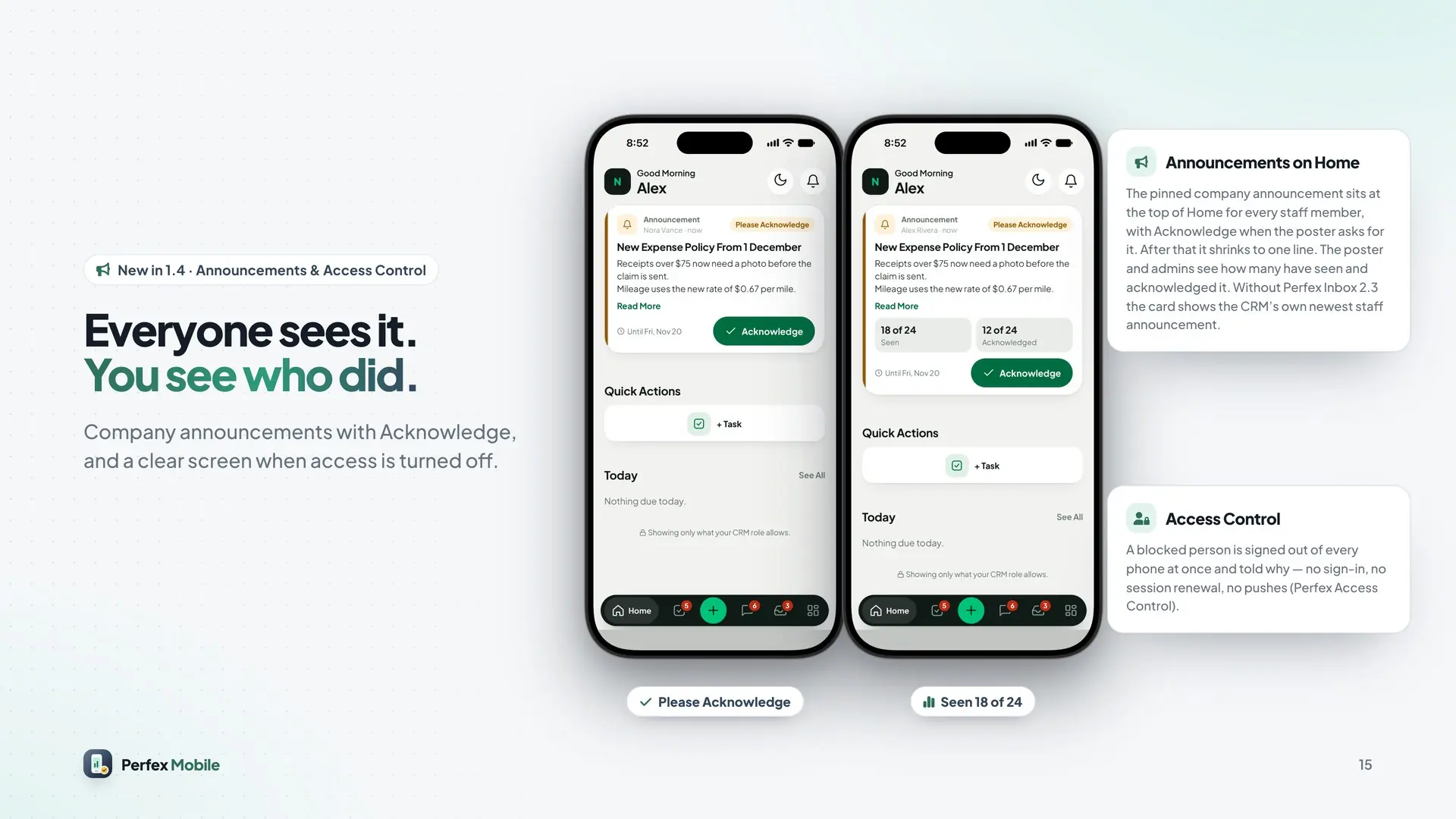
- Company announcements on Home (Perfex Inbox 2.3): the pinned announcement shows at the top of Home for every staff member,
  with "Acknowledge" when the poster asked for it; after that it shrinks to one line until it expires or a newer one
  replaces it. The poster and admins see how many have seen and acknowledged it. Without Inbox 2.3, Home shows the CRM's
  newest staff announcement (Utilities › Announcements) with its Dismiss.
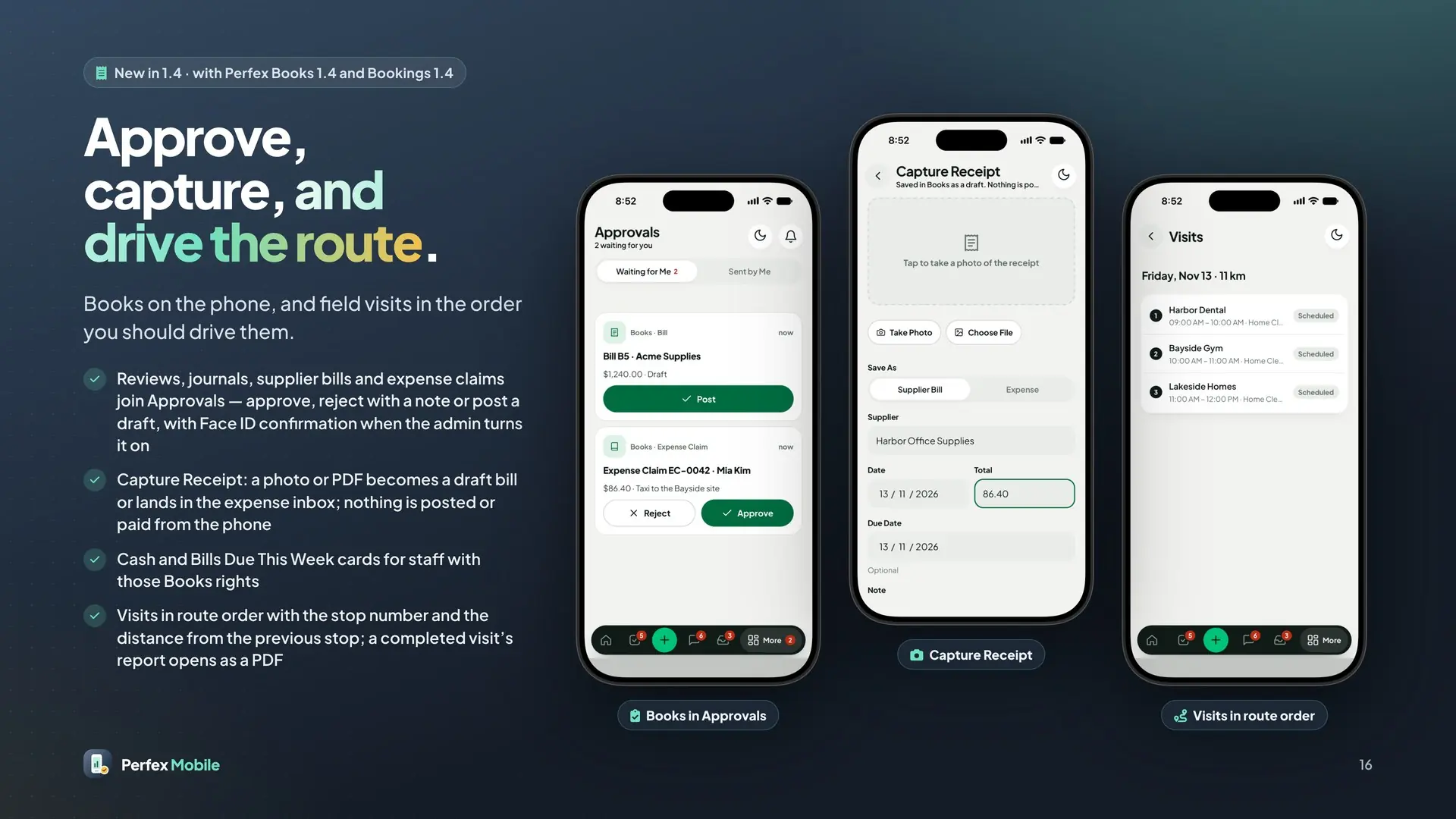
- Perfex Books 1.4 on the phone: reviews, journals, supplier bills (approve, reject with a note, or post a draft) and
  expense claims join the Approvals list, with Face ID confirmation when the admin turns it on. "Capture Receipt" (+ button
  and More) sends a photo or PDF of a receipt to Books as a draft supplier bill or to the expense capture inbox; nothing is
  posted or paid from the phone. Photos are converted to JPEG and their location removed before sending. Home shows Cash
  and Bills Due This Week cards to staff with those Books rights.
- Visits (Perfex Bookings 1.4 and newer): visits come in route order with the stop number and the straight-line distance
  from the previous stop, and a completed visit's report opens as a PDF.
- Perfex Access Control: a blocked person is signed out of every phone at once, cannot sign in or renew a session, and
  gets no pushes; the app says the access was turned off.
- Settings › Notifications has Team Chat and Announcements rows (on by default, also for staff who saved their choices
  before).
Fixed
- Newer versions of sibling modules (People, Inbox, Product Hub, AI Staff, Sentinel and others) are no longer refused by
  version number; the app checks the functions it uses instead (the 1.3.3 Sentinel fix, for every module).
1.3.3 - 2026-11-13 — Security fix
Fixed
- Security: Setup › Mobile App and the module's other signed-in pages now refuse a changed request that did not come from the
  CRM's own pages (another website, or an address the CRM excludes from its form check). Before, a page on another site that
  a signed-in admin opened could change the Mobile App settings. The app, QR pairing and the app page are unchanged.
- With Perfex Sentinel 1.3 installed, signing in with a password on the phone always asked for QR pairing instead, and
  Sentinel's sign-in lockout and log were skipped. Sentinel 1.3 is now accepted; the app checks the functions it uses.
1.3.2 - 2026-11-12 — Inbox alerts, breaks, field visits, voice with the Assistant
New
- Inbox alerts on the phone: with Perfex Inbox, "assigned to you", inbox rules, response-time warnings and misses, lead
  alerts, low customer ratings, messages not sent, account problems and the daily summary now send a push. They have their
  own switch in the app's Settings (Inbox Alerts, on by default); the push shows only what happened, not the customer's text.
- Receiving a transfer: a lost or damaged quantity can carry a photo, also when the receipt is saved offline. The photo is
  kept privately in the CRM and its address is recorded in the line's history in Perfex Product Hub 1.5.0; only admins and
  staff with Product Hub's inventory right can open it.
- Breaks on the phone: with Perfex People 1.5.2 and break punches switched on, the attendance card has Start Break / End
  Break while you are clocked in. Without a network the break is saved on the phone with the offline codes and sent later,
  like an offline clock-in.
- Visits for field staff (Perfex Bookings 1.3.0): a Visits screen lists your visits at the customer's place for today and
  the next six days, with the address (opens the map), the customer's phone and needs. On the Way, Arrived, Completed and
  No Show follow the same rules as at the desk; add a note, a photo or the customer's signature. Without a network, updates
  are saved on the phone and sent later; if the office moved, reassigned or cancelled the visit meanwhile, the app says so.
- Receive Transfers lists every transfer on its way, 25 at a time with Load More (before: the first 25 and a count).
- Voice with the AI Assistant (Perfex AI Staff 1.3): a microphone button fills the question in the app; you still send
  it yourself. Anything that would change money, a booking or an order is read back first and needs Confirm, Change or
  Cancel, then the usual approval. The phone's own speech recognition is used when it has one; it is off until an admin
  turns voice on for the Mobile app in AI Staff. With older AI Staff nothing changes.
- Perfex Brain Pro 1.6 dashboards can show Perfex Mobile widgets (signed-in phones per person, step-ups and Face ID
  enrolments waiting, push health) and a "step-ups waiting" line in Brain Pro's digest, for admins.
Fixed
- Perfex Inbox conversation and message times in the app were off by the CRM's time-zone offset (read as UTC; Inbox
  stores the CRM's local time).
- Perfex TeamPulse timesheets waiting for approval showed their "submitted" time off by the CRM's time-zone offset
  (read as local time; TeamPulse stores UTC).
- The Purchase Order screen's title was cut with "…" on phones; it now reads "Purchase Order".
- Perfex Mobile's own tables now use the same collation as Perfex's tables (utf8mb4_unicode_ci). Before, they took the
  database server's default, which on some servers could make a lookup that joins them with Perfex's tables fail. The
  upgrade converts them; a very large table is left as it is and named in the CRM's error log.
- Setup > Mobile App: the Face ID Approvals tab's "Nothing waiting." sat against the edge of its box; the Phones tab
  drew each person as a box inside the box (now one card with rows); the Everyone filter's arrow touched the edge.
- My Profile > Mobile App: when connecting a phone is switched off (for example in a demo), the card no longer shows an
  empty white QR square next to the message.
1.3.1 - 2026-11-12 — QR code fix
Fixed
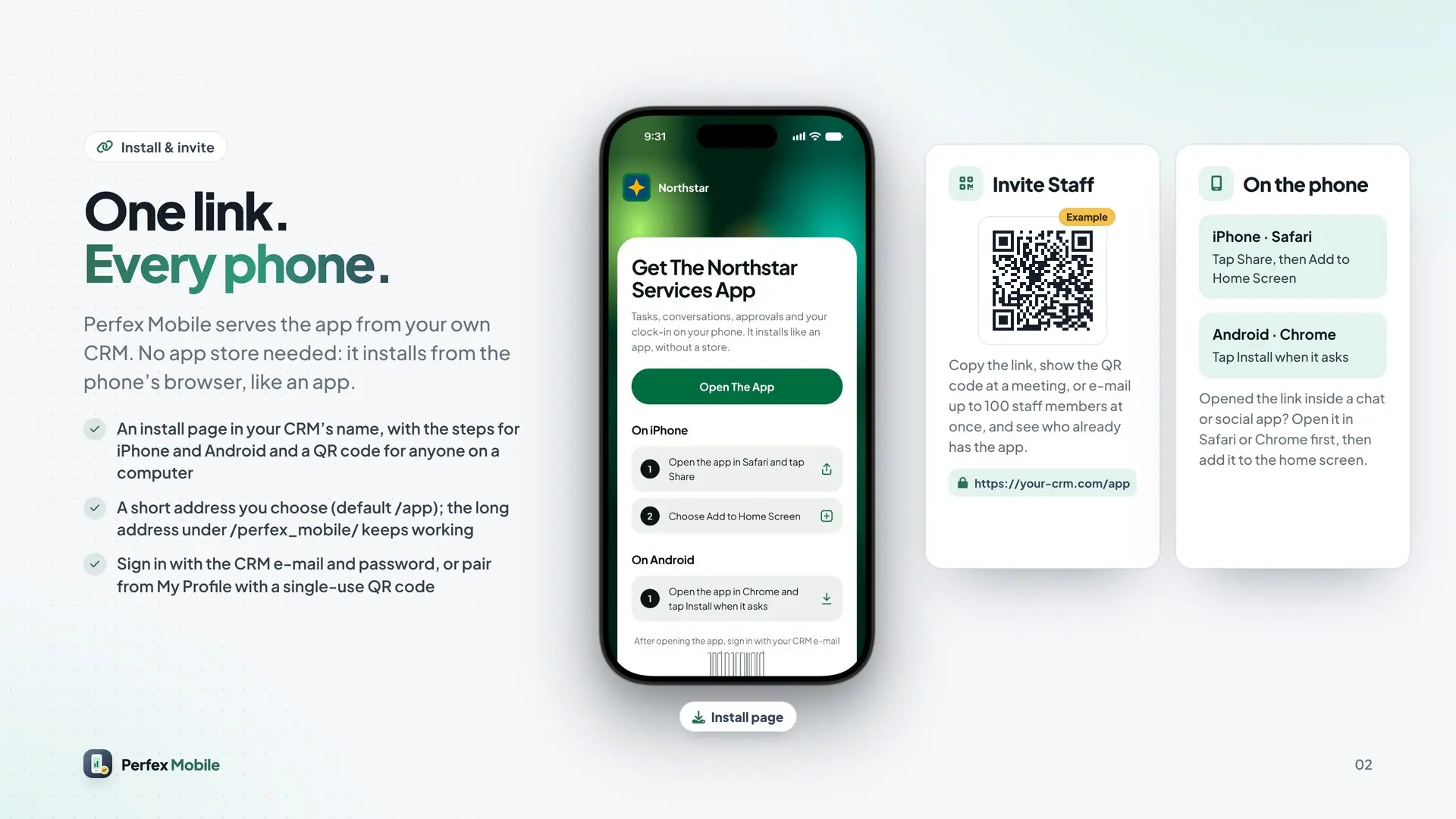
- With another module installed that brings its own QR code library, the pages that show a pairing or install QR code
  (My Profile, Invite Staff, the install page, the Customer App pairing) could stop with "Cannot declare class QRcode".
  Perfex Mobile now draws its QR codes with its own bundled encoder, so it no longer clashes with other modules. The
  codes scan the same as before.
- The pairing code's countdown on My Profile and on the customer's card showed "Expires in s" without the seconds.
- With Perfex AI Staff 1.2 or newer, the app hid the Assistant and AI Staff's approval cards (the app only accepted AI
  Staff 1.1). AI Staff 1.2 and 1.3 now work with the app again.
Also shipped in 1.3.0 (not listed in its changelog)
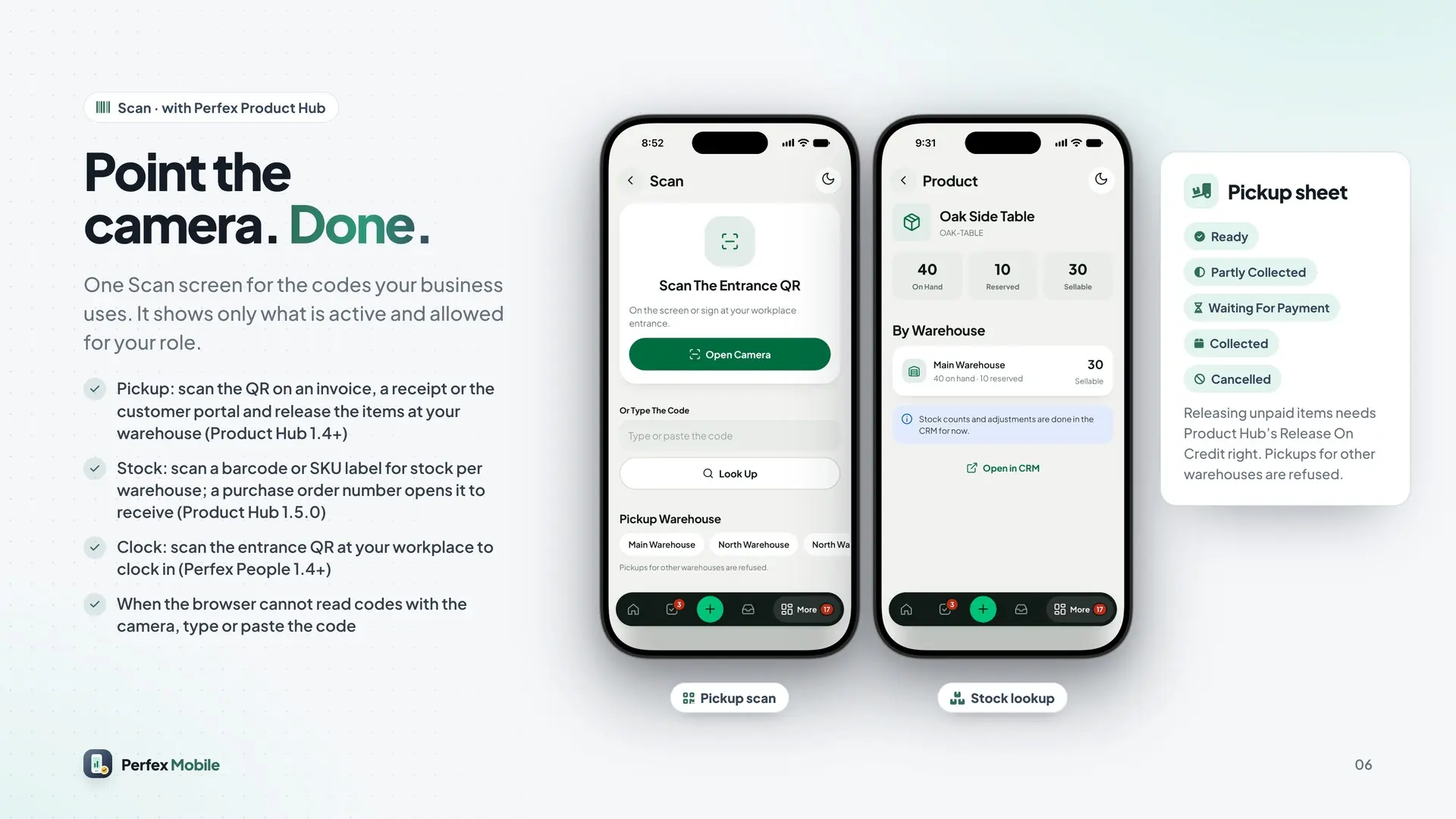
- The Scan tab opens a purchase order: a scanned or typed purchase order number (PO-12, PO12, PO #12, or P0-12 typed with
  a zero) opens Receive a Purchase Order (Perfex Product Hub 1.5.0).
- Faster code reading on iPhone: the camera opens at a higher resolution, barcodes are read at a larger size and focus
  stays continuous where the phone allows it.
1.3.0 - 2026-11-11 — Face ID confirmations, stock on the phone, offline clock-in
Confirm with Face ID
- Sensitive actions can ask for a confirmation on the phone: leave and attendance decisions (Perfex People 1.5.1),
  pickup release, refunds, discounts and manager overrides at the till (Perfex Product Hub 1.5.0). Face ID,
  fingerprint or the phone passcode; nothing about the face or finger leaves the phone.
- A till or the web can send a request to a manager's phone: scan the code, check the summary, Confirm or Decline.
- On the web, the fallback per action is the person's password, the phone, or none. Every action is off until an
  admin turns it on in Setup > Perfex Mobile > Settings > Step-Up. A log keeps who confirmed what, with which method.
Attendance
- Clock in and out without a network: the punch is saved on the phone with Face ID and sent when the phone is back
  online. The time is checked against the phone's own running clock and the entrance code, so a changed phone clock
  is caught; offline punches always go to approval.
- New phones and new Face ID set-ups can be approved by HR, with one selfie that only HR and admins see.
- Approval timeline for each entry, approve or reject several entries at once, breaks and today's clock points.
Stock on the phone (Perfex Product Hub 1.5.0)
- Product card with stock per warehouse, lots and expiry, the reorder point and the last movements.
- Send a transfer to another warehouse, request a write-off of expired lots.
- New Stock Work lists: receive the transfers on their way to your warehouses, receive a purchase order (scan or type
  its number; lot, expiry or serial where the product needs it; never more than the order allows), and count the open
  stock counts line by line, blind where you may not see the expected quantity.
- Transfers, receipts and counts made without a network wait on the phone and are sent when it is back online; a count
  keeps the time it was made, even if the phone's clock is off.
For admins
- Setup > Perfex Mobile > Settings in tabs, phones listed once per person, old phones signed out after 90 days,
  activity with filters and paging. Automations of Perfex Connect can send a push to staff (its own switch in the app's settings).
- The Face ID Approvals tab lists new phones and Face ID set-ups waiting for HR, with the selfie, approve
  or reject with a note; the push to HR opens the row.
- AI Staff answers "who hasn't installed the app?".
- The admin page and the My Profile card follow Design Studio 2.0 themes (colours, radius, light and dark); without
  Design Studio the module's own light and dark look stays.
On the phone
- Face ID can be set up again from Settings without signing the phone out: CRM password, then one tap.
- The tab bar is shorter and hides while you scroll down a list; it comes back when you stop or scroll up. Buttons at
  the bottom of forms and chats stay above it.
- Lead detail shows the pipeline as a stage bar; "Stage n of N" when there are many stages.
- Approvals: a request that cannot be confirmed says why (no Face ID set up, set-up still waiting for HR, not an
  approver, expired, too many tries) and how long a request is still valid.
- Offline work: a code lookup or punch without network answers at once from the phone; two windows or tabs of the
  app on the same account no longer overwrite each other's saved offline work.
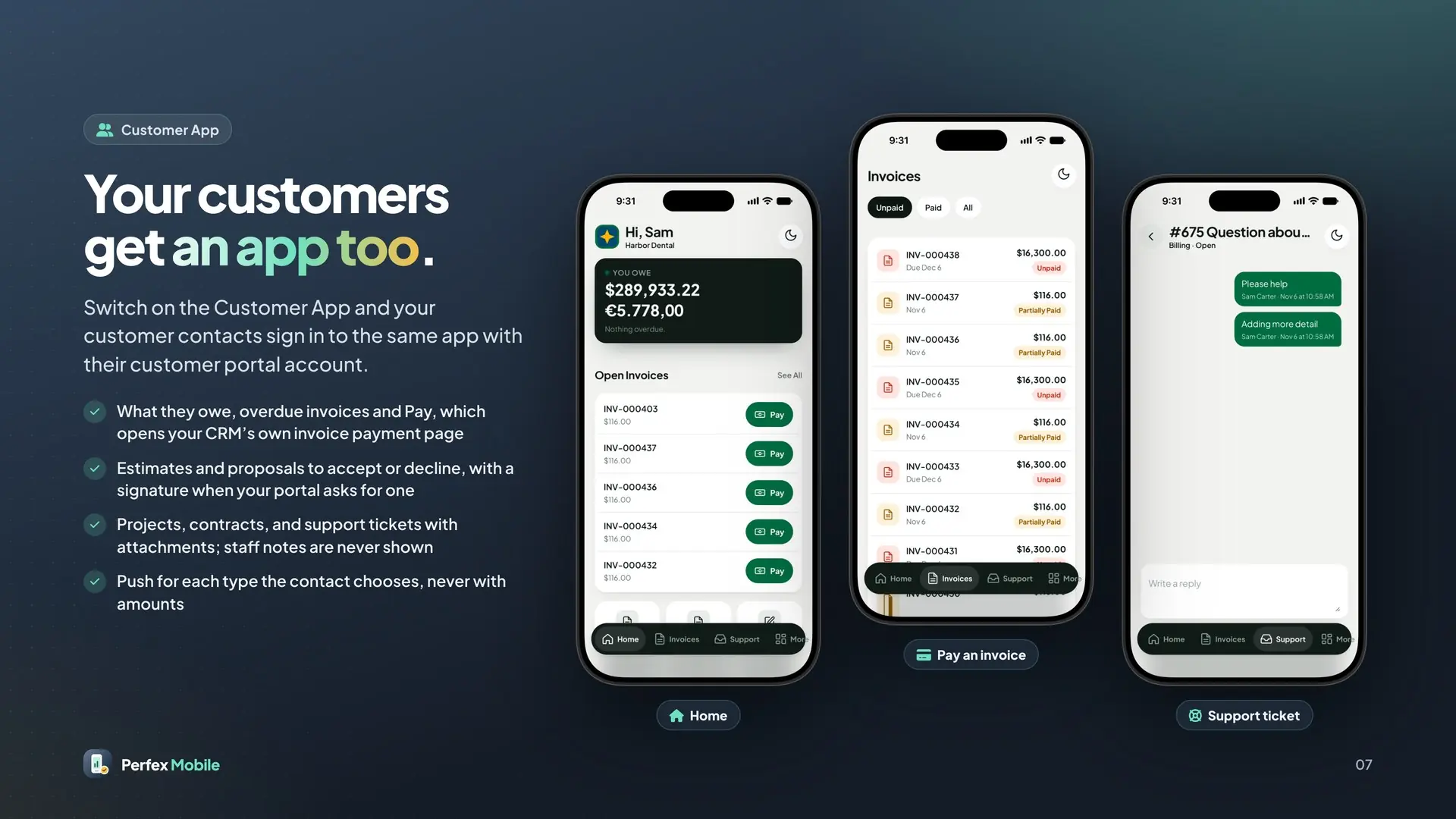
- Customer app: Pay, Accept and Decline stay above the tab bar; an invoice without lines shows no empty bar.
Fixes
- Offline taps show the offline sheet at once; the app icon made from a wide logo is sized correctly and keeps its
  transparent corners on Imagick servers; the app name shows from the first moment; text such as "a
1.2.1 - 2026-11-07 — Buttons at the bottom of forms and chats
Fix
- Buttons at the bottom of forms and chats could be hidden behind the tab bar on phones (Create Lead / Task / Invoice /
  Leave, invoice Send and Payment, inbox reply, the AI Assistant composer, Customer App Pay / Accept). They now sit
  above the tab bar.


 0 Viewing now
Live buyer activity

Pick 3 of SamSan’s items to unlock 10% off your total.
Everything you pick is added to your cart when you tap the button below.
Last update:
25 Nov, 2026
Published:
06 Nov, 2026
Version:
Category:
Framework:
Tags:







 Google
 Github
 From Unknown Location
 Elite Seller
 Trend Master
 Featured Item